
Almost every iPhone user has had to deal with rapid battery drain. One of the issues comes from fully charging iPhones every morning, and by midday, the battery has fully depleted. This is a common issue regardless of whether you own an iPhone 12, 14, 16, or any of the newest iPhone models.
Here’s the good news. In most cases, fast battery drain isn’t a hardware problem. It’s a settings problem, and it’s completely fixable. This guide breaks down the real reasons your iPhone battery is draining fast and gives you 10 tips and fixes you can apply in the next 10 minutes.
If you’re thinking about upgrading to a model with better battery life, check the iPhone official price before you decide—and always buy from a reliable online mobile shop so you know you’re getting the real thing.
First — How to Find What’s Actually Draining Your Battery
Before jumping into fixes, spend 60 seconds diagnosing the actual problem.
Go to Settings → Battery. Here you’ll see:
- Battery Usage by App: Which apps consumed the most power over the last 24 hours or 7 days
- Background Activity: If an app shows high usage with a “Background Activity” note, it’s draining your battery even when you’re not using it
- Battery Health: tells you how much capacity your battery still holds compared to when it was new
If an app shows significant background activity, it means the app was consuming power even when it wasn’t open on your screen, refreshing content, syncing files, or updating its data. This is one of the most important clues for figuring out what’s draining your iPhone battery when you aren’t even using it.
Once you know the culprit, the fixes below become much more targeted and effective.
Why Is My iPhone Battery Draining So Fast? The Real Causes?
Most people assume a draining battery means the battery itself is failing. Sometimes that’s true, but more often, these are the real reasons:
Screen brightness: It is almost always the biggest drain. The display is the single most power-hungry component on your iPhone, and keeping it at full brightness all day is like leaving a light on in every room.
Background App Refresh: Apps silently update their content even when you’re not using them. This constant background activity is like a slow, steady leak — you might not notice it right away, but by the end of the day, your battery is half empty.
Location Services: running continuously is a major silent killer. Social media apps with auto-play videos, navigation apps using GPS constantly, and even messaging apps with frequent background refresh can cause your iPhone battery to drain faster than usual.
Poor cellular or Wi-Fi signal: forces your iPhone to work harder than it should. When your iPhone hunts for a signal, it burns through battery at an alarming rate. If you live or work in an area with weak coverage, your iPhone might burn through 20% or more overnight while you sleep.
iOS update aftermath: This is also a common cause. Right after a major update, your iPhone re-indexes files and finishes background tasks, which temporarily increases drain. This usually settles within 24 to 48 hours.
Aging battery: It’s the one hardware cause. Lithium-ion cells lose both capacity and efficiency with each charge cycle. Once battery health drops below 80%, no software fix will solve the problem permanently.
10 Actionable solutions you can implement
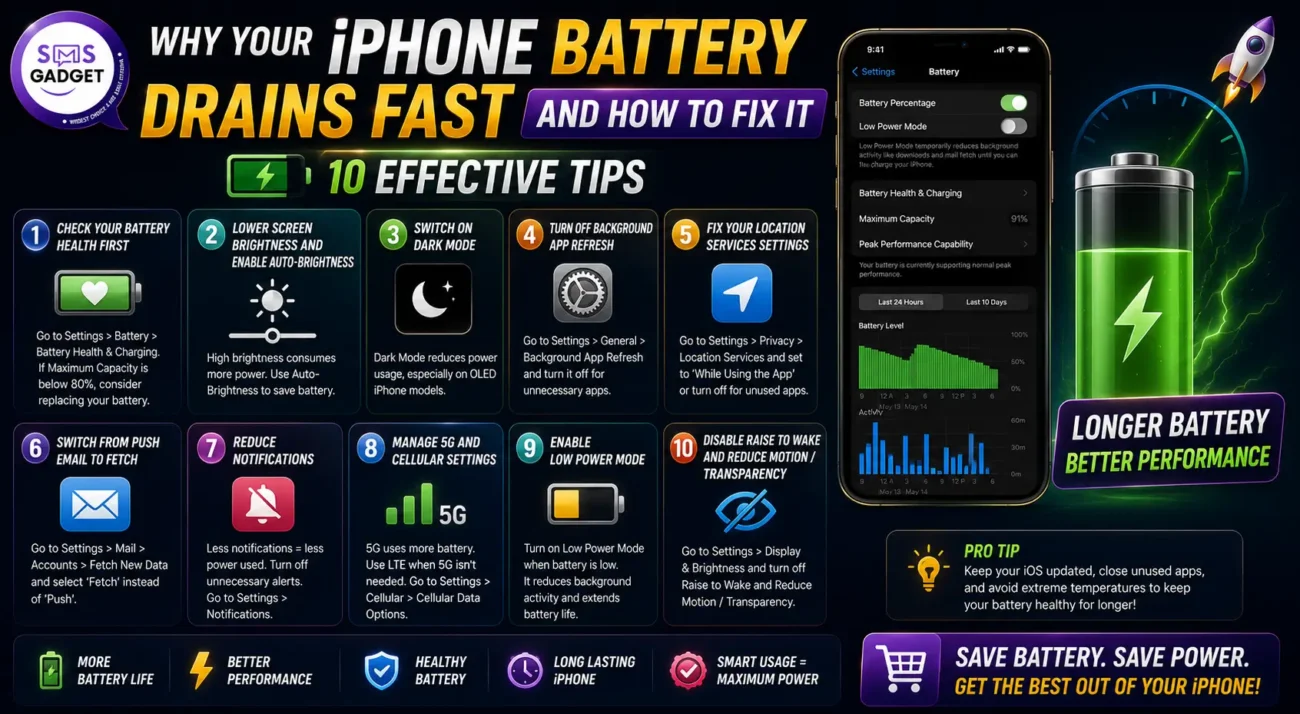
Start with Tip 1 and work your way down the list. Most of these changes take under a few minutes each, and the cumulative effect can be dramatic.
Tip 1. Check Your Battery Health First
Before changing any settings, find out if your battery is actually the problem.
Go to Settings → Battery → Battery Health & Charging.
You’ll see a percentage labeled “Maximum Capacity.” A healthy range is 85–100%. Any warning message such as “performance management applied” indicates the battery is worn and may need replacement.
Replace your battery when the maximum capacity falls below 80%, or if you receive a notification in the Battery Health section indicating that the battery needs servicing. Once you’re past that threshold, even the best settings optimizations won’t give you a full day’s battery life.
Also, make sure Optimized Battery Charging is turned on. This feature learns your charging routine and holds the charge at 80% overnight, only topping up to 100% before you wake, which significantly slows battery degradation over time.
Tip 2. Lower Screen Brightness and Enable Auto-Brightness
This single change often makes the biggest difference.
The display is usually the single biggest battery drain on an iPhone. Dropping brightness even a little pays off all day.
Go to Settings → Display & Brightness and pull the slider down to the lowest comfortable level. For automatic adjustment based on your surroundings, go to Settings → Accessibility → Display & Text Size and switch on Auto-Brightness.
Also, shorten your auto-lock timer. Go to Settings → Display & Brightness → Auto-Lock and set it to 30 seconds or 1 minute. Every second your screen stays lit when you’ve put the phone down is pure waste.
Tip 3. Switch On Dark Mode
This tip specifically helps iPhones with OLED displays, which includes all models from iPhone X onwards. On the OLED screens found on all modern iPhones, black pixels are literally “off” and consume no power. With over 3 million pixels on an iPhone screen, those savings can add up fast.
Go to Settings → Display & Brightness and set Appearance to Dark. You can also set it to automatic so it switches on at sunset without you having to think about it. Pair this with a dark wallpaper for maximum savings.
Tip 4. Turn Off Background App Refresh
This is one of the most impactful settings you can change. Allowing all your open apps to update and refresh in the background continually is a sure-fire way to drain your iPhone battery. Go to Settings → General → Background App Refresh. You have three options: Off (disables it entirely), Wi-Fi Only, or Wi-Fi & Cellular Data. At minimum, turn it off for apps you don’t need updating in the background—games, shopping apps, news apps, and social media.
You won’t lose any functionality. The only change is that when you open those apps, they might take a second longer to load the latest content. That’s a worthwhile trade.
Tip 5. Fix Your Location Services Settings
Location Services is one of the most overlooked causes of battery drain.
GPS location tracking is essential for apps like Maps and navigation tools, but constant background pings drain your battery quickly. Go to Settings → Privacy & Security → Location Services and adjust each app’s access. For most apps, “While Using the App” strikes the perfect balance between functionality and battery conservation.
While you’re there, scroll to the bottom and tap System Services. Disable Significant Locations, iPhone Analytics, and Routing & Traffic if you want to push battery savings further. These are system-level location services that run silently in the background and rarely affect your day-to-day experience.
Tip 6. Switch from Push Email to Fetch
Push email requires a constant connection to your mail server. Fetching email on a schedule uses less battery life.
Go to Settings → Mail → Accounts → Fetch New Data. Turn off Push and set Fetch every 30 minutes, hourly, or manually, depending on how urgently you need new emails. If you have one important account, you can enable Push just for that one and fetch the rest.
This is especially impactful if you have multiple email accounts—each one maintaining a live push connection is quietly chipping away at your battery all day.
Tip 7. Reduce Notifications
Every notification your iPhone receives wakes the screen, triggers a vibration or sound, and briefly activates background processing. If you’re getting hundreds of notifications a day, the cumulative drain adds up.
Go to Settings → Notifications, review each app, and disable notifications for apps that don’t need to alert you urgently.
You don’t need to silence everything. Focus on the apps sending the most notifications with the least value—group chats in apps you barely use, promotional alerts from shopping apps, and social media activity updates are the first places to cut.
Tip 8. Manage 5G and Cellular Settings
If your iPhone supports 5G, it may be defaulting to 5G even in situations where the network is weak or unavailable, forcing the radio to constantly search and consume power.
Go to Settings → Cellular → Cellular Data Options → Voice & Data. Switch from 5G On to 5G Auto. This setting intelligently uses 5G only when it meaningfully improves performance and falls back to LTE when the difference isn’t worth the battery cost. Most users won’t notice any difference in real-world speed, but the battery savings can be significant, especially in areas with inconsistent 5G coverage.
If you’re in an area with no cellular coverage at all (a basement or a remote area), enabling airplane mode temporarily is the fastest way to stop your iPhone from draining itself searching for a signal.
Tip 9. Enable Low Power Mode
Low Power Mode is your emergency battery extender. It is reduces the amount of power your device uses by reducing or disabling certain settings and features, including Mail fetch, Hey Siri, Background App Refresh, and some visual effects. It turns off automatically once you charge past 80%. You can enable it anytime — not just when your battery is low. Go to Settings → Battery → Power Mode or add it to your Control Center for one-tap access.For iPhone 15 Pro and newer running iOS 26, Apple introduced Adaptive Power Mode—a smarter version that learns your daily routine and automatically adjusts background activity during low-usage periods. Unlike Low Power Mode, Adaptive Power learns your daily routine and reduces background tasks during hours you typically don’t use your phone. Enable it under Settings → Battery → Power Mode → Adaptive Power.
Tip 10. Disable Raise to Wake and Reduce Motion / Transparency
Raise to Wake activates your screen every time you pick up or move your iPhone. It’s convenient, but if you handle your phone frequently throughout the day without intending to use it, it’s quietly burning battery.
Disable it under Settings → Display & Brightness → Raise to Wake.
While you’re at it, go to Settings → Accessibility → Motion and enable Reduce Motion. This turns off the parallax effect on your wallpaper and reduces animation complexity throughout iOS. Similarly, go to Settings → Accessibility → Display & Text Size and turn on Reduce Transparency. On older iPhones like the iPhone 13 series, iOS 26’s Liquid Glass interface and newer visual effects are more demanding on older hardware. Enabling Reduce Transparency and Reduce Motion makes a real difference.
Bonus — Force Restart and Update Your Apps
If battery drain suddenly got worse without you changing anything, a quick force restart often helps. It clears temporary system caches and can stop runaway background processes.
For iPhone 8 and later: Press and quickly release Volume Up → Press and quickly release Volume Down → Press and hold the Side button until the Apple logo appears.
Also, make sure your apps are up to date. Go to the App Store → Account icon → Update All. Outdated apps can have bugs that cause abnormal battery consumption. Developers regularly push updates that fix exactly these kinds of issues.
When to Replace Your iPhone Battery
Software fixes have limits. If your battery health is below 80%, no combination of settings changes will give you a full day’s battery life. Apple offers battery replacement starting at $99 for most iPhone models—verify current pricing at apple.com/support. Apple Authorized Service Providers offer similar pricing. A battery replacement often makes an older iPhone feel completely new again.
Signs it’s time for a replacement:
- Maximum Capacity below 80%
- iPhone shows “Service Recommended” in Battery Health
- Random shutdowns even with charge remaining
- The phone runs hot during normal usage
Quick Reference — All 10 Fixes at a Glance
| # | Fix | Where to Find It |
| 1 | Check Battery Health | Settings → Battery → Battery Health |
| 2 | Lower Brightness + Auto-Brightness | Settings → Display & Brightness |
| 3 | Enable Dark Mode | Settings → Display & Brightness |
| 4 | Turn Off Background App Refresh | Settings → General → Background App Refresh |
| 5 | Limit Location Services | Settings → Privacy → Location Services |
| 6 | Switch Push Email to Fetch | Settings → Mail → Accounts → Fetch New Data |
| 7 | Reduce Notifications | Settings → Notifications |
| 8 | Switch 5G to 5G Auto | Settings → Cellular → Cellular Data Options |
| 9 | Enable Low Power / Adaptive Power Mode | Settings → Battery → Power Mode |
| 10 | Disable Raise to Wake + Reduce Motion | Settings → Display & Brightness / Accessibility |
Conclusion
A draining iPhone battery is almost never a death sentence for your device. In the vast majority of cases, a handful of settings changes, especially addressing screen brightness, background app activity, and location services, can add hours back to your daily battery life.
If you apply all 10 and your battery is still struggling, that’s a clear signal it’s time for a battery replacement—not a new phone.
Speaking of which, if you’re genuinely ready for an upgrade, always check the iPhone official price first and shop through a trusted online mobile shop to make sure you’re getting an authentic device with full warranty support. Visit the online mobile shop for more information.
