
A practical guide to local editing, compatibility, synchronisation, backup, and recovery
Modern document work often depends on cloud storage, browser-based tools, and continuous internet access. These services are useful, but they can also create a single point of failure. A temporary connection problem, a sync error, or an unavailable online service may prevent users from accessing files when they need them most.
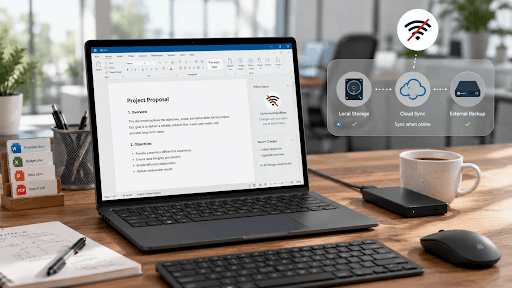
An offline-first document workflow reduces that dependency. It allows important files to remain available for local editing while still using cloud services for collaboration, sharing, and remote backup. The goal is not to remove the cloud from the workflow. Instead, it is to make sure that document work can continue when a network connection is slow, unstable, or temporarily unavailable.
Building this type of workflow requires more than installing an office application. Users also need to consider file compatibility, folder organisation, version control, synchronisation, backups, and recovery procedures.
What an Offline-First Document Workflow Actually Means
An offline-first workflow gives priority to local file access. Essential documents are stored in a location that can be opened without relying on a live connection, and the main editing tools continue to work when the computer is offline.
This approach usually includes several elements:
- Local access to current working documents
- Desktop software that can edit files without a browser
- Manual or delayed cloud synchronisation
- A clear location for completed and archived files
- An independent backup that is separate from the sync folder
- A documented process for recovering damaged or deleted files
Offline-first does not mean that every file must remain on one computer permanently. Cloud storage can still be valuable for teamwork, remote access, and off-site protection. The difference is that cloud synchronisation supports the workflow rather than controlling whether the workflow can operate.
A useful principle is: local access first, cloud synchronisation second.
Choose a Desktop Office Suite That Works Locally
The office suite is one of the most important parts of an offline document workflow. Before selecting one, users should test whether it can open, edit, save, and export the document formats they use regularly.
Important checks include:
- Offline access to document, spreadsheet, and presentation tools
- Support for common formats such as DOCX, XLSX, PPTX, and PDF
- Reliable local saving and “Save As” controls
- PDF creation and export
- Automatic recovery after an unexpected shutdown
- Support for comments, tracked changes, formulas, and embedded images
- Predictable handling of fonts and page layouts
Before standardising a workflow, users should compare local editing and file compatibility options, including WPS Office for Windows, against the document types they handle most often.
The decision should be based on real files rather than a simple blank document. A tool may perform well with basic text but behave differently when opening a complex spreadsheet, a presentation with custom fonts, or a document containing tracked revisions.
Test Document Compatibility Before Changing Your Workflow
Compatibility problems are often discovered only after a team has already moved important files into a new system. A structured test can reduce that risk.
Create a small collection of representative documents, such as:
- A DOCX file with tables, images, footnotes, and page breaks
- An XLSX file with formulas, filters, charts, and multiple worksheets
- A PPTX file with custom fonts, animations, and speaker notes
- A document containing comments and tracked changes
- A multilingual file containing Chinese, Japanese, or other non-Latin text
- A document that must be exported to PDF without layout changes
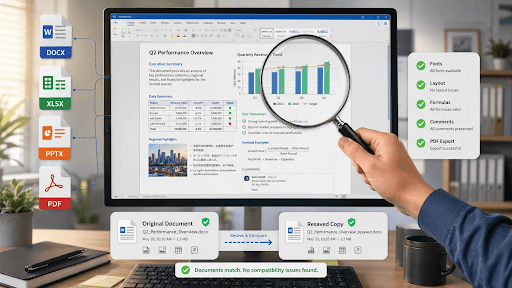
Open each file in the original application and record its appearance. Then open it in the software being evaluated. Check the page layout, fonts, line spacing, tables, formulas, charts, images, comments, and headers.
Next, save a copy from the new application and reopen that copy in the original software. This second step is important because some problems appear only after a file has been edited and saved.
The objective is not always perfect visual matching. Small differences may be acceptable. However, changes that affect calculations, printed pages, legal wording, branding, or collaboration history should be treated as serious compatibility issues.
Separate Working Files, Shared Files, and Archives
A reliable workflow needs a simple folder structure. When files are scattered across the desktop, downloads folder, email attachments, and several cloud directories, it becomes difficult to identify the correct version.
A basic structure could look like this:
| Documents/ ├── Working/ ├── Shared/ ├── Exported-PDF/ └── Archive/ |
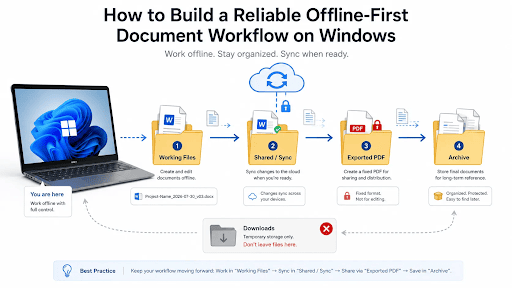
The Working folder should contain documents that are currently being edited. The Shared folder should contain files that need to be synchronised or accessed by other people. The Exported-PDF folder can hold fixed copies prepared for distribution. The Archive folder should contain completed versions that are no longer under active revision.
This separation makes it easier to understand the purpose of each file. It also reduces the chance that a draft will be sent instead of an approved version.
The downloads folder should not become permanent storage. Files received through a browser, email, or messaging application should be reviewed, renamed when necessary, and moved to the appropriate project folder.
Prevent Cloud Sync and Version Conflicts
Cloud synchronisation can create problems when the same file is edited on several devices while those devices are offline. When they reconnect, the sync service may create duplicate or conflicted copies.
To reduce this risk:
- Avoid editing the same document offline on two devices at the same time
- Wait for synchronisation to finish before shutting down the computer
- Do not move large groups of files while a sync process is still running
- Assign one person to resolve conflicts in shared team documents
- Use clear filenames rather than repeated versions such as “final-final-new”
A practical naming format is:
| Project-Name_2026-07-30_v03.docx |
The filename identifies the project, date, and version without becoming excessively long. For collaborative work, a team may also add initials when several people create separate drafts.
After resolving a conflict, keep only the approved master version in the active folder. Older copies can be moved to an archive rather than left beside the current document.
Build a Backup and Recovery Routine
Synchronisation and backup are not the same thing. A sync service copies changes between locations, including accidental changes. If a user deletes a file and that deletion is synchronised, the file may disappear from every connected device.
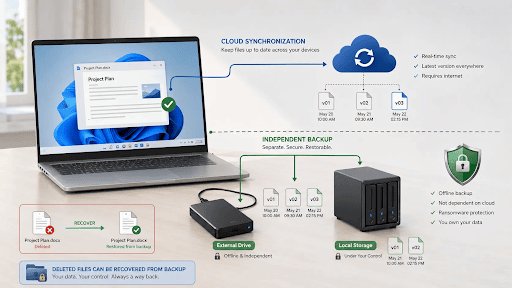
An effective backup should be separate from the main working and sync locations. Depending on the importance of the documents, this could include an external drive, a network storage device, or another independent storage service.
A simple routine may include:
- Frequent saving while a document is being edited
- A daily backup of active project folders
- An additional backup when a project is completed
- A monthly test to confirm that selected files can be restored
Recovery testing is essential. A backup report may show that a task completed successfully, but that does not prove that every file is readable. Periodically restore a few documents to a temporary folder and open them to verify their contents.
For critical projects, keep more than one historical backup. This makes it possible to recover an earlier version if a corrupted or incorrect document was backed up before anyone noticed the problem.
Keep the Workflow Secure
Offline access improves availability, but local files still need protection. Office software should be obtained from a trusted source, and both Windows and the installed applications should be kept updated.
Users should also be cautious with files received from unknown senders. Documents containing macros, embedded objects, or unusual extensions may present additional risks. Avoid enabling active content unless the sender and purpose have been verified.
Other useful precautions include:
- Avoiding cracked installers and unofficial activation tools
- Using strong Windows account credentials
- Limiting access to folders containing confidential information
- Removing comments, metadata, and hidden content before external sharing
- Using device encryption where appropriate
- Scanning unexpected attachments before opening them
Sensitive documents should not remain indefinitely in public or temporary folders. After reviewing a downloaded file, move it to a protected project directory or delete it when it is no longer needed.
A Practical Offline-First Workflow Checklist
| Check | What to Verify |
| Local access | Important files can be opened without an internet connection |
| Compatibility | Fonts, layouts, formulas, comments, and images remain intact |
| Saving | Documents can be saved to a clearly selected local folder |
| PDF export | Exported pages preserve the required formatting |
| Synchronisation | Offline changes upload without creating duplicate versions |
| Backup | A separate recoverable copy exists outside the sync folder |
| Security | Software and documents come from trusted sources |
| Recovery | Deleted, damaged, or overwritten files can be restored |
Conclusion
A dependable Windows document workflow should not stop working simply because an internet connection becomes unavailable. Local editing, file compatibility testing, organised folders, controlled synchronisation, independent backups, and regular recovery checks all contribute to a more resilient system.
The office suite is an important part of that system, but software alone cannot prevent version confusion or data loss. Before moving an entire team to a new workflow, test it with representative files and a limited project. A small trial can reveal compatibility, synchronisation, and recovery problems before they affect critical documents.
Frequently Asked Questions
Does offline-first mean avoiding cloud storage?
No. Cloud storage can still be used for collaboration, remote access, and off-site copies. An offline-first workflow simply ensures that essential documents and editing functions remain available when a live connection is unavailable.
Which files should be tested before choosing office software?
Test the most complex files used in normal work. These may include formatted DOCX documents, spreadsheets with formulas, presentations with custom fonts, multilingual files, documents with tracked changes, and files that must be exported accurately to PDF.
Is cloud synchronisation the same as a backup?
No. Synchronisation copies changes between locations, including deletions and damaged files. A backup should preserve a separate recoverable copy and, ideally, retain older versions that can be restored when necessary.
