
Producing print-ready artwork, large-format graphics, and high-DPI digital assets from text prompts is now practical — but only if you understand the resolution requirements and the tools that can actually meet them.
This guide covers what resolution actually means for print, how AI generation and upscaling combine to reach print-ready quality, and the workflow that takes you from a prompt to a file your printer can use.
Understanding resolution for print
- 300 DPI: The minimum resolution for quality print output. At 300 DPI, a 6×4 inch print requires at least 1800×1200 pixels.
- 150 DPI: Acceptable for large-format prints (posters, banners) viewed from a distance.
- 72-96 DPI: Screen resolution. Looks fine on a monitor; prints blurry at almost any size.
| Print size | Required at 300 DPI | Required at 150 DPI |
| 4″x6″ (postcard) | 1,200×1,800 px | 600×900 px |
| 8″x10″ | 2,400×3,000 px | 1,200×1,500 px |
| 18″x24″ (poster) | 5,400×7,200 px | 2,700×3,600 px |
| 24″x36″ (large poster) | 7,200×10,800 px | 3,600×5,400 px |
At this stage, having access to an AI image generator with high-resolution output can make the difference between iterating fast and waiting days for production to catch up.
The problem with AI generation resolution
Most AI image generators produce outputs at 1024×1024 or 1536×1536 pixels natively. These resolutions are sufficient for web use but fall short of print requirements. At 300 DPI, a 1024×1024 image prints cleanly at approximately 3.4×3.4 inches.
AI upscaling: reconstructing detail, not just stretching
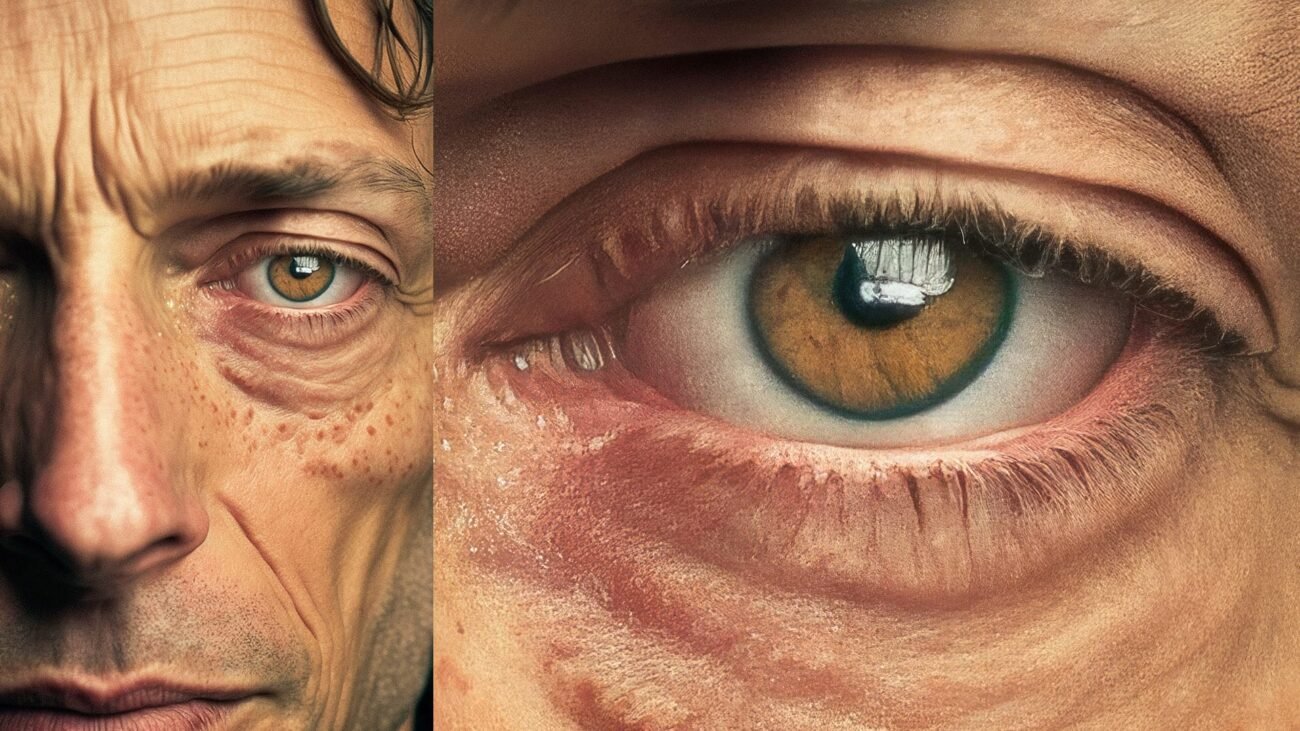
Traditional upscaling works by mathematically interpolating between existing pixels. AI upscaling uses deep learning to predict what additional detail would plausibly exist in a higher-resolution version of the image, then generates that detail. A well-upscaled AI image at 8x looks sharper and more detailed than the same image stretched to 2x with traditional methods.
Magnific AI supports upscaling up to 16x with Precision mode for faithful upscaling that preserves original details, and Creativity mode for artistic images where enhancement is acceptable.
Recommended workflow: prompt to print-ready file
- Generate the base image: Use a high-quality model (Midjourney v7, FLUX 2 Pro, or Imagen 4 Ultra) with a prompt that specifies detail, lighting, and composition.
- Check for quality issues: Review the output for artifacts before upscaling. Upscaling amplifies imperfections.
- Upscale: Precision mode for photographs and product images, Creativity mode for artistic content.
- Verify at 100%: Zoom to 100% in Photoshop and check representative areas for any upscaling artifacts.
- Export at maximum quality: TIFF (lossless) for professional print, high-quality JPEG (90%+) for digital printing services.
FAQs
Can AI-generated images match the quality of professional photography for print?
For many print use cases in 2026 — posters, marketing materials, editorial illustrations — yes. The current generation of photorealistic AI models produces outputs that, properly upscaled, are difficult to distinguish from photography in print.
What is the maximum print size I can achieve from an AI-generated image?
With AI upscaling, a 1024px base image can be taken to 16,000+ pixels — sufficient for billboard-size print at viewing distances of several feet.
Should I generate at a higher resolution or upscale a lower-resolution output?
Start at the highest resolution your generator natively supports, then upscale if needed.
